


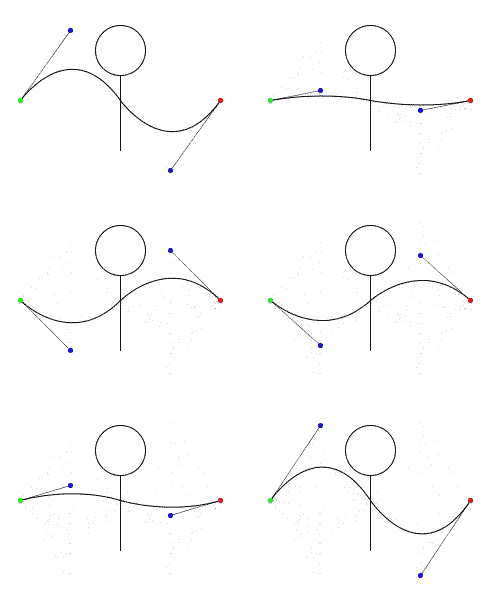
Download Code for Mr Wavy Dude below.
Fist introduced in this post (, I am currently working on a project titled the “Kinetic Story Teller” with friend and artist Tine Bech. This is a visual arts interaction piece and as such I am learning Processing. This is another post sharing logging and sharing my learning journey.
The new visual design will re-focus the piece on a concept which was part of the original plan; the idea of flow and waves. These will be waves of information drawn in a playful manner from twitter based on #tags each participant can select.
Back to the task at hand! I found a great library named “Geomerative” (Website) by Ricard Marxer. I have struggled to find many similar sketches online other than those included in the examples, so i figured I would share my progress. This post whilst keeping a log for my own future use, I hope may serve as a reference for others out there with the same aims as me.
Geomerative Bezier Lines
From what I understand thus far, the geomerative library allows for the definition of a RShape object. This object is formed of a series of path objects of type RPath. The RShape object provides a range of utility functions for interfacing with and manipulating the generated shape.
In our case once we generate our RShape object, we will want to add a curve, looking though the documentation here, we do this by calling:
float cp1y,
float cp2x,
float cp2y,
float endx,
float endy)[/code]
The documentation defines the following parameters:
cp1x – the x coordinate of the first control point of the bezier.
cp1y – the y coordinate of the first control point of the bezier.
cp2x – the x coordinate of the second control point of the bezier.
cp2y – the y coordinate of the second control point of the bezier.
endx – the x coordinate of the ending point of the bezier.
endy – the y coordinate of the ending point of the bezier.
Lets explore what these mean with some drawing examples. Lets begin by creating a simple script drawing a single bezier curve. Here cp1 is green, cp2 blue and end is red.
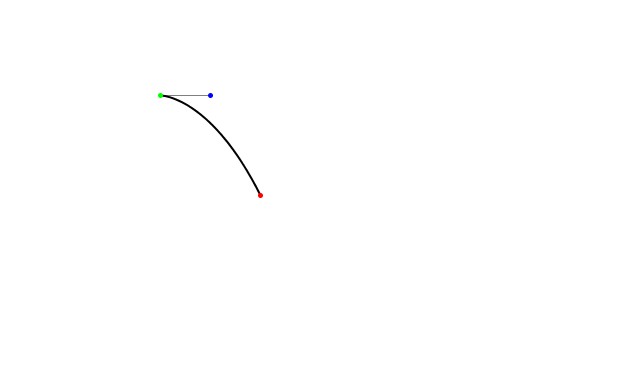
The code for making this:
RShape wave;
void setup()
{
// From the examples we must always initialise the library using this command
RG.init(this);
//Usual Processing Jazz
size(640 ,380);
background(255);
//Set up a little for the look and feel
//fill(255, 102, 0);
stroke(0);
strokeWeight(2);
//Now we generate a new RShape object in which to create our wavy shape and
//assign its reference as wave
RShape wave = new RShape();
//At the moment the wave object is empty, so lets add a curve:
wave.addBezierTo(0, 0, 50, 0, 100, 100);
//Lets start to draw away from the edges
translate(width/4, height/4);
//Draw our wave shape
wave.draw();
//Create a visual reference for our control points
strokeWeight(0.5);
line(0,0,50,0);
strokeWeight(5);
stroke(0, 255, 0); //Green
point(0,0);
stroke(0, 0, 255); //Blue
point(50,0);
stroke(255, 0, 0); //Red
point(100,100);
}
void draw(){
}
Now in our case we would like to start from the bottom, but, moving the coordinates for cp1 down to 0, 100 did not have the desired result:

So, it seems cp1 is exactly that, a control point not a start point. So a little investigation on how to move this point uncovers the function:
float endy)[/code]
Adding this moves the starting point back to the same value as cp1:
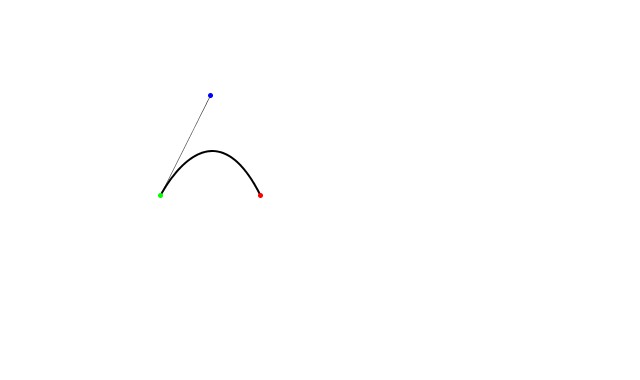
with:
wave.addMoveTo(0, 100);
wave.addBezierTo(0, 100, 50, 0, 100, 100);
Ok so since we have a better idea of what these points do, lets try to extend our shape to make it more ‘wave’ like. I have also added some coordinate references to give a better idea of whats going on:

The code defining our shape now looks like:
wave.addMoveTo(0, 100);
wave.addBezierTo(0, 100, 50, 0, 100, 100);
wave.addBezierTo(100, 100, 150, 200, 200, 100);
Finally, lets complete the wave shape by adding a final curve:
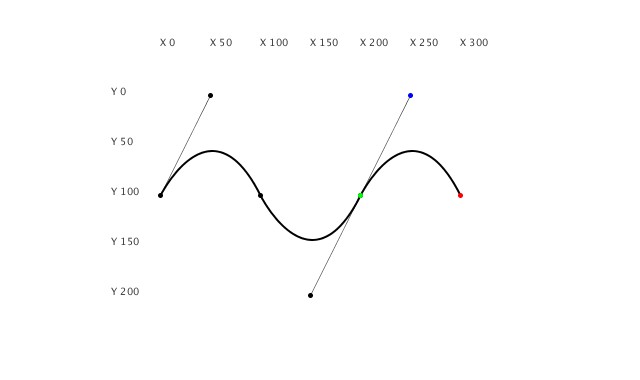
So, we have used the geomerative library to create our first shape which is a series of bezier curves. The next step is to translate this into an object and design in a way to create variations of this curve for each object.
Download
Head over to github:
https://github.com/louisc/processing-standalone-sketches


[…] Uncategorized/Placing points along an Arc using Geomerative Polygonizer and Processing Previous […]